Pages - Menu

▼

Wednesday, June 26, 2013

Transform Your iOS 6 Devices to iOS 7! iOS 7 Cydia Theme

With the release of iOS 7, some cydia tweaks has been made to make your iOS 6 devices to look like it's running iOS 7. Of course you can't replicate the core function of iOS 7, but at least you can show it off to your friends :p

iOS 7 Preview

So here is the tutorial on transforming your iOS 6 to iOS 7.

  1. You must have Winterboard installed on your iPhone/iPad/iPod Touch. If you haven't got it, install it from cydia.
  2. Download these .deb cydia packages files:
  3. Install it to your iPhone/iPad/iPod Touch. If you don't know how, see this post: Install .deb Files (Cydia Packages) Using iFunbox.
  4. Activate the themes through Winterboard.
  5. Enable NCSettings in Setting - Notifications.
  6. Enable Trans Keyboard iOS 7 through Setting - Color Keyboard.
  7. Enable Roboto Light Font in BytaFont.
  8. Open Setting - NCColors, set your preferences.
  9. Open Setting - FolderEnhancer, set your preferences.
  10. Enjoy your "iOS 7" device ;)

Install .deb Files (Cydia Packages) Using iFunbox

 1. Download iFunbox (mirror). Once download completed, just unzip and extract the file into one folder.
 

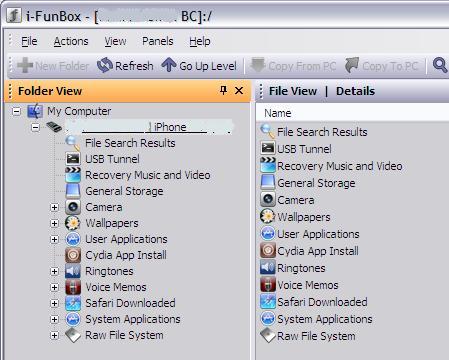
2. Launch i-FunBox by clicking "iFunBox.exe" icon. Then connect your iPhone/iPad/iPod Touch to your PC via USB cable. i-FunBox will detect your idevice automatically as shown below.


3. Just go and click on cydia icon which is "Cydia App Install" (in "iFunbox Classic" tab) which is at the top of i-FunBox UI shows the location as //var/root/Media/Cydia/AutoInstall.


4. Just drag & drop the .deb file that you would like to install into "Cydia App Install" folder which is at the right hand side panel. For example, I'm going to install iBye apps that I've downloaded.


5. Once done, you have to reboot your iPhone/iPad/iPod Touch. Enjoy!